Average Position
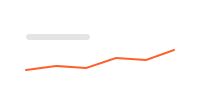
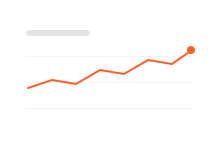
One number for all your tracked keywords, and a chart of how it moves over time.
Rank Tracking
Monitor your Google positions by location and device, week over week, and connect every move to the work you shipped. Add your website and keywords to get started.
Ubersuggest's rank tracking software shows where each keyword ranks in Google and how it moves week over week, or day over day with daily tracking.
One number for all your tracked keywords, and a chart of how it moves over time.
How many keywords rank in the Top 3, Top 10 and Top 100, and which are Not Ranked.
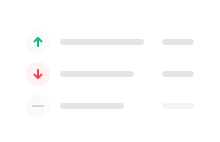
How many keywords moved up, moved down or held their position since the last update.
Use See Trend to follow any keyword's Google position since you started tracking it.
Create a project, add your keywords and check back every week.
Enter your website and follow the setup. The keywords and location you pick there are tracked from that day on.
Track more terms, or the same keyword in another country or city. You can also import a list from a CSV file.
Switch between desktop and mobile, pick a location, and choose the period you want to analyze.
Rankings update weekly, or daily with the daily tracking add-on. Open any keyword with See Trend to see how it moved.
Rank tracking, also called SEO rank tracking, means checking where your pages appear in Google for the keywords that matter to your business, on a regular schedule. Following the same keywords week after week shows whether your SEO work is paying off.

Match each move up or down to the pages you published or updated that week.

See which keywords slipped each week and fix the page before you lose traffic.

Keywords in the Top 100 but outside the Top 10 are often the quickest to improve.
Google shows different results in different places and on different screens. Track each keyword where your customers actually search.
Track each keyword across a whole country or in a specific city, then switch locations at the top of the report.
Turn on Mobile Rank Tracking in your project settings, then switch devices in the menu at the top of the report.
Each week, every keyword is checked against the top 100 organic Google results for its location and language.
See which URL ranks for each keyword, next to its search volume and SEO difficulty, so you know which page to improve.
A few signs in the report tell you what changed since the last update.
Green arrows mark keywords that moved up since the last update. Red ones mark drops.
The keyword is below position 100 in Google. A dash under Change means the same.
Keywords outside the top 100 count as 100+, so they make your average look worse.
Pick a date range in the report, such as the last 30 days, to see what moved and when.
New keywords start slow
A keyword only gets a position once it appears on a page Google has indexed, and it shows up after the next weekly update. Low rankings at the start are normal.
Rank tracking is the practice of checking where your website appears in Google for a set of keywords over time. A rank tracker like Ubersuggest's Rank Tracking does it every week, by location and device, so you can see what your SEO work changed.
Once a week by default, or every day with the daily rank tracking add-on. A keyword you add today gets its first position after the next update, and its history starts that day.
The keyword is outside the top 100 organic Google results for the location you track. Featured snippets can also show as Not Ranked. Improve the page that targets the keyword and check again after the next update.
Ubersuggest has not collected data for that keyword yet. Pending is temporary: the position appears on its own after the next weekly update, and you do not need to do anything else.
Google personalizes results by location, device and search history. Rank Tracking checks a fixed location, language and device each week and counts organic results only, so small differences are normal.
Yes. Choose a country or a city for each keyword, and turn on Mobile Rank Tracking in your project settings. Then switch between desktop and mobile in the device menu at the top of the report.
Projects track your root domain, so you follow keywords rather than single pages. Add the keywords a page targets, then check which URL ranks for each one in your Rank Tracking report.
In Rank Tracking, click Add Keywords and choose Import from CSV. Use a file with a column named Keywords, or start from the Ubersuggest template. Imported keywords get a position after the next update.
Click See Trend next to the keyword to open its Google position over time. Pick a date range that starts after you added the keyword, since earlier dates have no data for it yet and the chart can keep loading.
Up to three years, starting the day you add each keyword and location. Keep the same project to keep your timeline, since deleting and recreating a project starts the history over.
Yes. A free account can track up to 25 keywords, with positions updated every week. With a paid plan, you can track hundreds of keywords across many locations, follow your rankings on desktop and mobile, and export your data and reports.